Whoa that’s quite a change
If you’ve been using the old Google Analytics API to fetch your site data into your app/custom dashboard and taken a look at the new API for Google Analytics 4 (GA4) then you’ve probably had a bit of a shock as it’s very different.
No longer can you just pass some easily assembled JSON into the API calls and get your results, we’re in to a full blown and complex (relatively speaking) SDK from Google.
If you’ve found the official documentation lacking and you’ve not yet found the official Google samples like we didn’t until we’d tested the API and written this for a client (yes, this is the kind of extra mile we go to), then read on as we’re going to have a whirlwind tour of getting your data quickly.
Installing the library
As you’d expect from a modern PHP SDK it uses composer to manage dependencies, so that’s what we’ll be using to install it:
composer require google/analytics-data
If you want to take advantage of streaming APIs then you’ll need to make sure your PHP install has grpc and protobuf extensions installed.
You’ll also need to make sure you’re using BetaAnalyticsDataGrpcClient and not BetaAnalyticsDataClient to send your queries.
Enabling access to the API
You’re going to need to do two things to get access to the API:
- Enable it for your Google Analytics Property
- Create and download an authentication token
Fortunately Google has a nice button for doing this in their API Quickstart document where you need to follow Step 1 and Step 2.
If you want to get even deeper in to it then Google has more information on authenticating with their Cloud SDK (this is a subset of it).
Getting your property ID
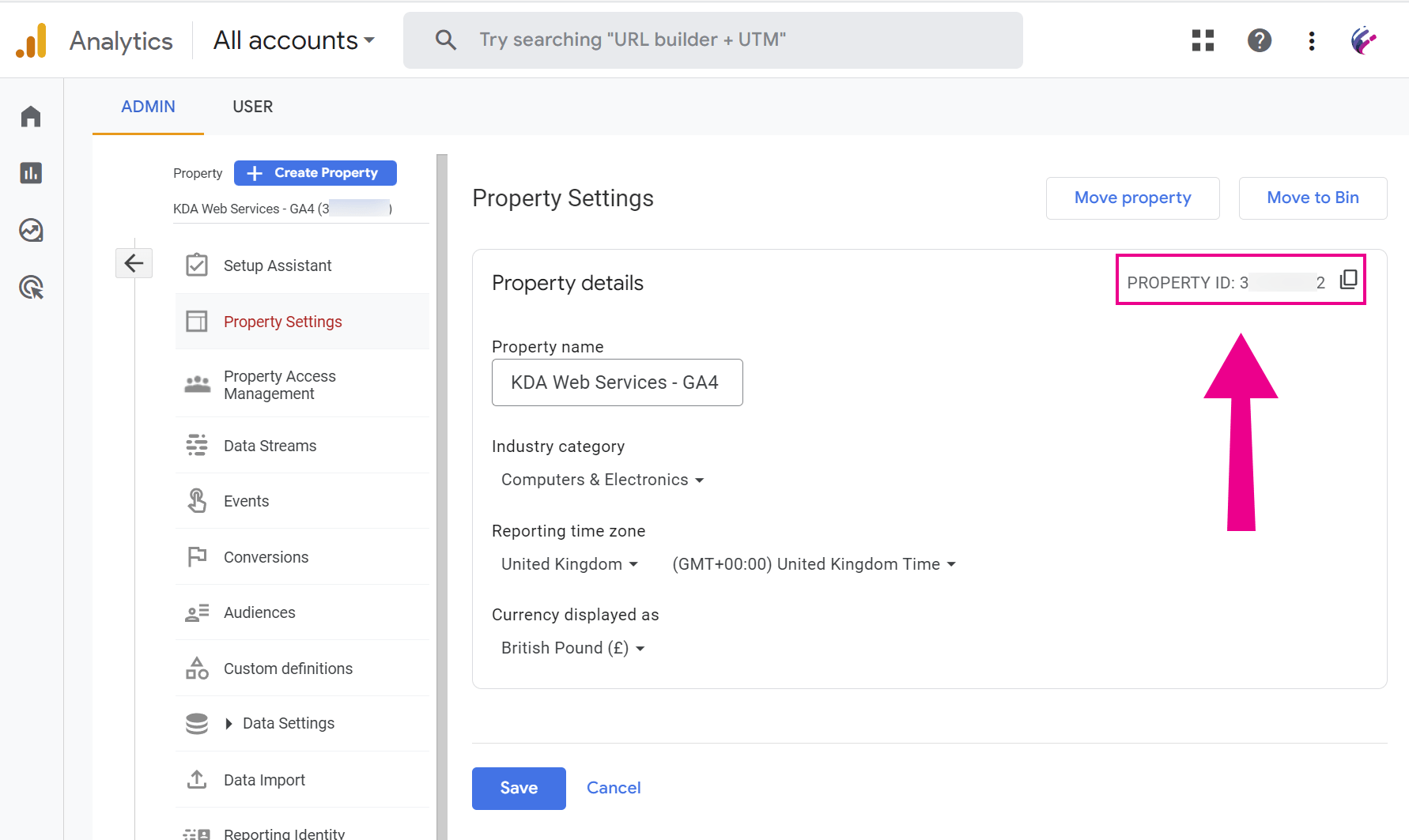
Don’t get all GA-XXXXXXX happy just yet, that won’t be your GA4 property ID as needed by the API. What you need is a fully numeric property ID and the easiest place to copy that from is by logging in to Google Analytics and choosing “Admin” (the little gearwheel icon) at the bottom of the left hand menu and then clicking “Property Settings” and you’ll see your ID at the top right:
Running a report
To run your first report there’s a lot to understand, and if you’re just looking at the GitHub repo for the library then you’re probably going to be left scratching your head, so we’re going to do our best to have a look at what you’ll need to know to get your first data back.
We’ve shown code fragments for each item, and at the end we’ll build it into a query you can run.
Date Ranges
Unless you want to query all of your data then you’re going to need to specify a date range to look at. As well as an actual date, you can also use today as a value, to represent todays date (as if it wasn’t obvious).
use GoogleAnalyticsDataV1betaDateRange;

/**
 * Get data from 26 December 2022 until 31 December 2022
 */
$dateRanges = [
    new DateRange([
        'start_date'  => '2022-12-26',
        'end_date'    => '2022-12-31',
    ]),
];

/**
 * Get data from 26 December 2022 until 31 December 2022
 *  AND
 * Get data from 26 December 2021 until 31 December 2021
 */
$dateRanges = [
    new DateRange([
        'start_date'  => '2022-12-26',
        'end_date'    => '2022-12-31',
    ]),
    new DateRange([
        'start_date'  => '2021-12-26',
        'end_date'    => '2021-12-31',
    ]),
];
Dimensions
Dimensions are the details about your users e.g. their location, the page they visited, their browser, etc. etc. The dimensions here are the data we want Google to return to us about our visitors.
use GoogleAnalyticsDataV1betaDimension;

/**
 * Get the date
 *  AND
 * Get the pagePath (/example/page)
 */
$dimensions = [
    new Dimension([
        'name' => 'date',
    ]),
    new Dimension([
        'name' => 'pagePath',
    ]),
];
Details of the various data dimensions and available metrics can be found in the Google API docs (API Dimensions & Metrics)
Metrics
Metrics are the bits we’re really interested in, how many active users, bounce rates, sessions, conversions, page views etc.
use GoogleAnalyticsDataV1betaMetric;

/**
 * Fetch the number of on-screen page views
 */
$metrics = [
    new Metric([
        'name' => 'screenPageViews'
    ]),
];
As with the dimensions example above, you can specify multiple metrics by defining a new Metric() as an array item.
Ordering
You’re probably going to want your results in some sort of order rather than having your app sort the data itself.
use GoogleAnalyticsDataV1betaOrderBy;
use GoogleAnalyticsDataV1betaOrderByDimensionOrderBy;
use GoogleAnalyticsDataV1betaOrderByMetricOrderBy;

/**
 * Order By date and then page views
 */
$orderBys = [
    new OrderBy([
        'dimension' => new DimensionOrderBy([
            'dimension_name' => 'date',
        ]),
    ]),
    new OrderBy([
        'metric' => new MetricOrderBy([
            'metric_name' => 'screenPageViews',
        ]),
    ]),
];
Filtering
This is where we can start to get really specific, we can filter data down based on dimensions and metrics . The dimensions used to filtering don’t have to be the same as those being returned in the query.
Simple filters
The quickest way to get up and running is with a simple filter that matches against a single dimension or metric.
use GoogleAnalyticsDataV1betaFilter;
use GoogleAnalyticsDataV1betaFilterExpression;
use GoogleAnalyticsDataV1betaFilterStringFilter;
use GoogleAnalyticsDataV1betaFilterStringFilterMatchType;

/**
 * All filters are formed as part of a FilterExpression
 *
 * Filter results based on pagePath that begins with /learn
 */
$filterExpression = new FilterExpression([
    'filter' => new Filter([
        'field_name'    => 'pagePath',
        'string_filter' => new StringFilter([
            'value'       => '/learn',
            'match_type'  => MatchType::BEGINS_WITH,
        ]),
    ]),
]);
String matching
You’ll have noticed that we specified a match_type for the filter, it’s always a good idea to set your own for code clarity reasons, especially as Google don’t say what the default of MATCH_TYPE_UNSPECIFIED actually is (although it appears to be EXACT ).
The different types of matches are shown below:
use GoogleAnalyticsDataV1betaFilterStringFilterMatchType;

/**
 * This is the default if not specified at all.
 * Appears to behave like EXACT
 */
$matchType = MatchType::MATCH_TYPE_UNSPECIFIED;

/**
 * Match any value that matches the string exactly
 *
 * Example:
 * pageUrl = /learn will match:
 *     /learn
 */
$matchType = MatchType::EXACT;

/**
 * Match any value that starts with the string
 *
 * Example:
 * pageUrl = /learn will match:
 *     /learn
 *     /learn-more
 *     /learn/more
 */
$matchType = MatchType::BEGINS_WITH;

/**
 * Match any value that ends with the string
 *
 * Example:
 * pageUrl = /learn will match:
 *     /learn
 *     /more/learn
 */
$matchType = MatchType::ENDS_WITH;

/**
 * Match any value that contains the string
 *
 * Example:
 * pageUrl = /learn will match:
 *     /learn
 *     /learn-more
 *     /learn/more
 *     /learning
 *     /more/learn
 *     /more/learning
 */
$matchType = MatchType::CONTAINS;

/**
 * Match any value that corresponds to the regular expression
 * that matches the whole string
 *
 * Example:
 * pageUrl = /learn(ing|/?more) will match:
 *     /learning
 *     /learnmore
 *     /learn/more
 */
$matchType = MatchType::FULL_REGEXP;

/**
 * Match any value that corresponds to the regular expression
 * that matches part of the string
 *
 * Example:
 * pageUrl = /learn(ing|/?more) will match:
 *     /learning
 *     /learnmore
 *     /learn/more
 *     /help/learning
 *     /help/learnmore
 *     /help/learn/more
 *     /learn/more-stuff
 *     /learningstuff
 *     /help/learn/more-stuff
 *     /help/learnmore-stuff
 */
$matchType = MatchType::PARTIAL_REGEXP;
Numeric matching
As well as matching by string, you can also perform numeric matches, but these are going to be most useful for a MetricFilter rather than a DimensionFilter :
use GoogleAnalyticsDataV1betaFilter;
use GoogleAnalyticsDataV1betaFilterExpression;
use GoogleAnalyticsDataV1betaFilterNumericFilterOperation;
use GoogleAnalyticsDataV1betaNumericValue;

/**
 * All filters are formed as part of a FilterExpression
 *
 * Filter results having 1000 or more screenPageViews
 */
$filterExpression = new FilterExpression([
    'filter' => new Filter([
        'field_name'    => 'screenPageViews',
        'string_filter' => new NumericFilter([
            'value'       => new NumericValue(['int64_value' => 1000]),
            'operation'   => Operation::GREATER_THAN_OR_EQUAL,
        ]),
    ]),
]);
As with the StringMatch there are multiple possible match criteria for NumericMatch :
use GoogleAnalyticsDataV1betaFilterNumericFilterOperation;

/**
 * This is the default if not specified at all.
 * Appears to behave like EQUAL
 */
$operationType = Operation::OPERATION_UNSPECIFIED;

/**
 * Match any value that is equal to the number
 */
$operationType = Operation::EQUAL;

/**
 * Match any value that is less than the number
 */
$operationType = Operation::LESS_THAN;

/**
 * Match any value that is less than or equal to the number
 */
$operationType = Operation::LESS_THAN_OR_EQUAL;

/**
 * Match any value that is more than the number
 */
$operationType = Operation::GREATER_THAN;

/**
 * Match any value that is more than or equal to the number
 */
$operationType = Operation::GREATER_THAN_OR_EQUAL;
Filtering based on a list
If we have multiple values that we want to match exactly against a single dimension then InListFilter is what we need:
use GoogleAnalyticsDataV1betaFilter;
use GoogleAnalyticsDataV1betaFilterExpression;
use GoogleAnalyticsDataV1betaFilterInListFilter;

/**
 * Filter results based on country being Germany (DE) or France (FR)
 */
$filterExpression = new FilterExpression([
    'filter' => new Filter([
        'field_name'     => 'countryId',
        'in_list_filter' => new InListFilter([
            'values' => [
                'DE',
                'FR',
            ],
        ]),
    ]),
]);
Building more complex filters
This is where we can get really powerful and start building complex expressions, much as we would if we were querying in SQL. Unfortunately it isn’t quite as elegant to look at, but non-the-less the AND, OR, NOT can all be combined so you can get exactly the data you want.
The main thing to note is the FilterExpressionList that filters need to be inside of when using the and_group or or_group .
AND: This AND this
use GoogleAnalyticsDataV1betaFilter;
use GoogleAnalyticsDataV1betaFilterExpression;
use GoogleAnalyticsDataV1betaFilterStringFilter;
use GoogleAnalyticsDataV1betaFilterStringFilterMatchType;

/**
 * We need to build a list of filters that we want to match
 *
 * Filter results based on pagePath that begins with /learn
 *  AND
 * Filter results based on country being UK (GB)
 */
$filterExpression = new FilterExpression([
    'and_group' => new FilterExpressionList([
        'expresssions' => [
            new FilterExpression([
                'filter' => new Filter([
                    'field_name'    => 'pagePath',
                    'string_filter' => new StringFilter([
                        'value'       => '/learn',
                        'match_type'  => MatchType::BEGINS_WITH,
                    ]),
                ]),
            ]),
            new FilterExpression([
                'filter' => new Filter([
                    'field_name'    => 'countryId',
                    'string_filter' => new StringFilter([
                        'value'       => 'GB',
                        'match_type'  => MatchType::EXACT,
                    ]),
                ]),
            ]),
         ],
    ]),
]);
OR: This OR this
use GoogleAnalyticsDataV1betaFilter;
use GoogleAnalyticsDataV1betaFilterExpression;
use GoogleAnalyticsDataV1betaFilterStringFilter;
use GoogleAnalyticsDataV1betaFilterStringFilterMatchType;

/**
 * We need to build a list of filters that we want to match
 *
 * Filter results based on pagePath that begins with /learn
 *  OR
 * Filter results based on pagePath that matches /help
 */
$filterExpression = new FilterExpression([
    'or_group' => new FilterExpressionList([
        'expresssions' => [
            new FilterExpression([
                'filter' => new Filter([
                    'field_name'    => 'pagePath',
                    'string_filter' => new StringFilter([
                        'value'       => '/learn',
                        'match_type'  => MatchType::BEGINS_WITH,
                    ]),
                ]),
            ]),
            new FilterExpression([
                'filter' => new Filter([
                    'field_name'    => 'pagePath',
                    'string_filter' => new StringFilter([
                        'value'       => '/help',
                        'match_type'  => MatchType::EXACT,
                    ]),
                ]),
            ]),
         ],
    ]),
]);
NOT: NOT this
use GoogleAnalyticsDataV1betaFilter;
use GoogleAnalyticsDataV1betaFilterExpression;
use GoogleAnalyticsDataV1betaFilterStringFilter;
use GoogleAnalyticsDataV1betaFilterStringFilterMatchType;

/**
 * Filter results based on country NOT being UK (GB)
 */
$filterExpression = new FilterExpression([
    'not_expressions' => new Filter([
        'field_name'    => 'countryId',
        'string_filter' => new StringFilter([
            'value'       => 'GB',
            'match_type'  => MatchType::EXACT,
        ]),
    ]),
]);
Putting it all together and generating a report
You’ve decided which dimensions you need, and what metrics will be useful, so now it’s time to get the data from Google.
/**
 * Load the libraries
 */
require 'vendor/autoload.php';

/**
 * Bring in used classes to make the code cleaner
 */
use GoogleAnalyticsDataV1betaBetaAnalyticsDataClient;
use GoogleAnalyticsDataV1betaDateRange;
use GoogleAnalyticsDataV1betaDimension;
use GoogleAnalyticsDataV1betaMetric;
use GoogleAnalyticsDataV1betaOrderBy;
use GoogleAnalyticsDataV1betaOrderByDimensionOrderBy;
use GoogleAnalyticsDataV1betaOrderByMetricOrderBy;
use GoogleAnalyticsDataV1betaFilter;
use GoogleAnalyticsDataV1betaFilterExpression;
use GoogleAnalyticsDataV1betaFilterStringFilter;
use GoogleAnalyticsDataV1betaFilterStringFilterMatchType;
use GoogleAnalyticsDataV1betaFilterNumericFilter;
use GoogleAnalyticsDataV1betaFilterNumericFilterOperation;
use GoogleAnalyticsDataV1betaNumericValue;

/**
 * Set the path to our credentials JSON file
 * IMPORTANT: Do not place this in a web accessible location!
 */
putenv('GOOGLE_APPLICATION_CREDENTIALS=../service-account-credentials.json');

/**
 * Set our property ID
 */
$propertyId = '000000000';

/**
 * Setup our API client
 */
$client = new BetaAnalyticsDataClient();

/**
 * Get data from 01 March 2023 until today
 */
$dateRanges = [
    new DateRange([
        'start_date'  => '2023-03-01',
        'end_date'    => 'today',
    ]),
];

/**
 * Get the date
 *  AND
 * Get the pagePath (/example/page)
 */
$dimensions = [
    new Dimension([
        'name' => 'date',
    ]),
    new Dimension([
        'name' => 'pagePath',
    ]),
];

/**
 * Fetch the number of on-screen page views
 */
$metrics = [
    new Metric([
        'name' => 'screenPageViews'
    ]),
];

/**
 * Order By date and then page views
 */
$orderBys = [
    new OrderBy([
        'dimension' => new DimensionOrderBy([
            'dimension_name' => 'date',
        ]),
    ]),
    new OrderBy([
        'metric' => new MetricOrderBy([
            'metric_name' => 'screenPageViews',
        ]),
    ]),
];

/**
 * Filter results having 100 or more screenPageViews
 *
 * This is a metricFilter, not a dimensionFilter
 */
$filterExpression = new FilterExpression([
    'filter' => new Filter([
        'field_name'    => 'screenPageViews',
        'string_filter' => new NumericFilter([
            'value'       => new NumericValue(['int64_value' => 100]),
            'operation'   => Operation::GREATER_THAN_OR_EQUAL,
        ]),
    ]),
]);

$response = $client->runReport([
    'property'        => 'properties/' . $propertyId,
    'dateRanges'      => $dateRanges,
    'dimensions'      => $dimensions,
    'metricFilter'    => $filterExpression,
    'metrics'         => $metrics,
    'orderBys'        => $orderBys,
]);
As you’d expect given the rest of the SDK and API, the response isn’t a simple associative array, it’s a complex structure which is returned as RunReportResponse which has several methods:
getDimensionHeaders()– Get details of the dimensions returnedgetMetricHeaders()– Get details of the metrics returnedgetRows()– Get the rows of data returnedgetTotals()– Get the aggregate totals returnedgetMaximums()– Get the aggregate maximums returnedgetMinimums()– Get the aggregate minimums returned- and a few others
You’ll notice the aggregates in there, we haven’t covered that yet, we might do that in a part two at some point.
To actually get your data you’ll want to call getRows() and iterate over it. To access the dimensions and metrics you’ll need to use:
$row->getDimensionValues()$row->getMetricValues()
Both of which return arrays of data, to get the actual value from an entry you’ll need to call getValue()
Closing thoughts
It’s somewhat unfortunate that Google have made the new API much more complicated, but in doing so it does bring it inline with the other Google Cloud APIs. Hopefully this will be enough to get you up and running with querying data from the GA4 API before Google closes down GA3 and you lose access to your stats.
If you spot any errors or have any comments then please feel free to get in touch with us on social media, by email or any of the usual channels.
Ah ha… samples.
After we’d written all of this, we eventually stumbled upon the code samples for the PHP API, which were a singular link that was easily missed (our customer missed it as well) in the Google docs.
You can find the official Google PHP samples in their GitHub repo: https://github.com/GoogleCloudPlatform/php-docs-samples/tree/main/analyticsdata/src